Creating a Facebook advertising campaign involves choosing the correct objective, audience, budget, creative and destination. Businesses that prefer professional support with this process may work with a Facebook Advertising Agency Malaysia to plan, set up and manage campaigns more systematically.
This Facebook Ads Manager Tutorial explains how to prepare your account and create a campaign using Meta Ads Manager’s campaign, ad set and ad structure.
The available settings may vary by account, objective and Meta interface, but the main process remains broadly consistent.
What Do You Need Before Creating a Facebook Campaign?
Before following this Facebook Ads Manager Tutorial, prepare the following campaign requirements:
- A Facebook Page
- A Meta ad account
- Access to the relevant business assets
- A valid payment method
- A clear campaign goal
- Target-audience criteria
- Advertising copy and creative
- A working website, form, app or messaging destination
- Conversion tracking, when required
Define the intended result in measurable terms. For example:
Generate qualified consultation enquiries from Malaysian business owners through a website form.
This goal helps determine the objective, destination, audience, call to action and measurement setup.
You should also review the relevant Facebook Ad Guidelines before preparing the campaign.
What Is Meta Ads Manager?
Meta Ads Manager is the platform used to create, publish and monitor advertising campaigns across eligible Meta placements.
Although many advertisers still call it Facebook Ads Manager, the platform can manage advertisements across Facebook, Instagram, Messenger and other supported placements.
Meta Ads Manager allows advertisers to:
- Choose campaign objectives
- Define audiences
- Set budgets and schedules
- Select placements
- Upload creative assets
- Add advertising copy
- Configure destinations and tracking
- Preview and publish advertisements
- Monitor delivery and results
It should not be confused with Meta’s other business tools.
| Meta Component | Main Purpose |
| Meta Business Suite | Manage content, messages and business activity |
| Business portfolio | Organise assets and user access |
| Meta Ads Manager | Create and manage advertising campaigns |
| Events Manager | Configure and review event tracking |
A business portfolio organises assets such as Pages, Instagram accounts and ad accounts. The detailed campaign setup takes place in Meta Ads Manager.
How Does the Facebook Campaign Structure Work?
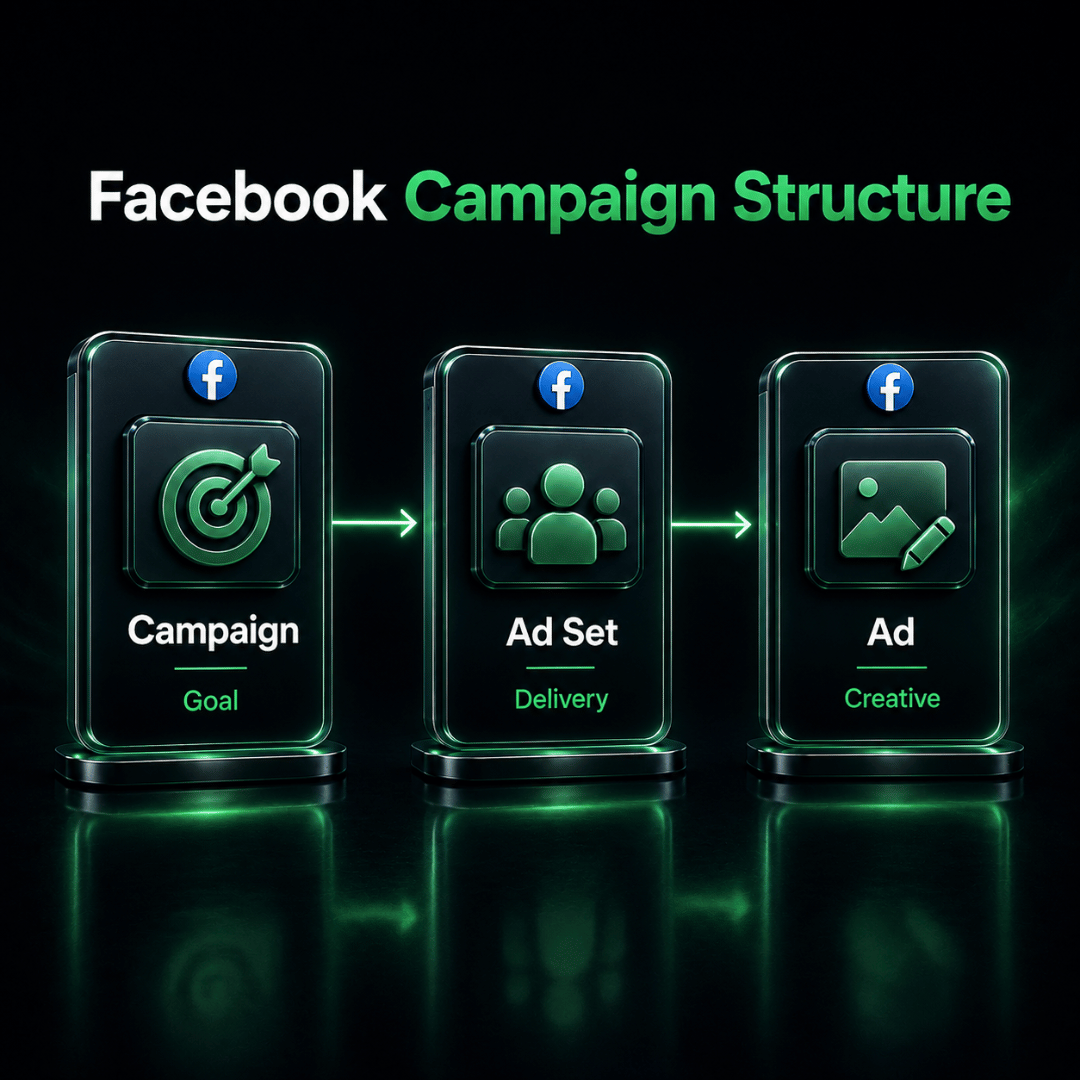
This Facebook Ads Manager Tutorial follows Meta’s three connected campaign levels: Campaign, Ad Set and Ad
| Level | Main Function | Common Settings |
| Campaign | Defines the advertising goal | Objective, Special Ad Category and campaign budget |
| Ad set | Controls campaign delivery | Audience, schedule, placements and conversion location |
| Ad | Contains what the audience sees | Identity, creative, copy, call to action and destination |
A simple way to remember the structure is:
- The campaign defines the goal.
- The ad set defines the delivery conditions.
- The ad contains the message and creative.
One campaign can contain multiple ad sets, and each ad set can contain multiple advertisements.
For example, a service business could create one lead-generation campaign, separate ad sets for Kuala Lumpur and Penang, and two creative variations within each ad set.
However, dividing a limited budget across too many ad sets can restrict delivery. Beginners should start with a simple structure that is easy to manage and measure.
How to Choose a Facebook Campaign Objective
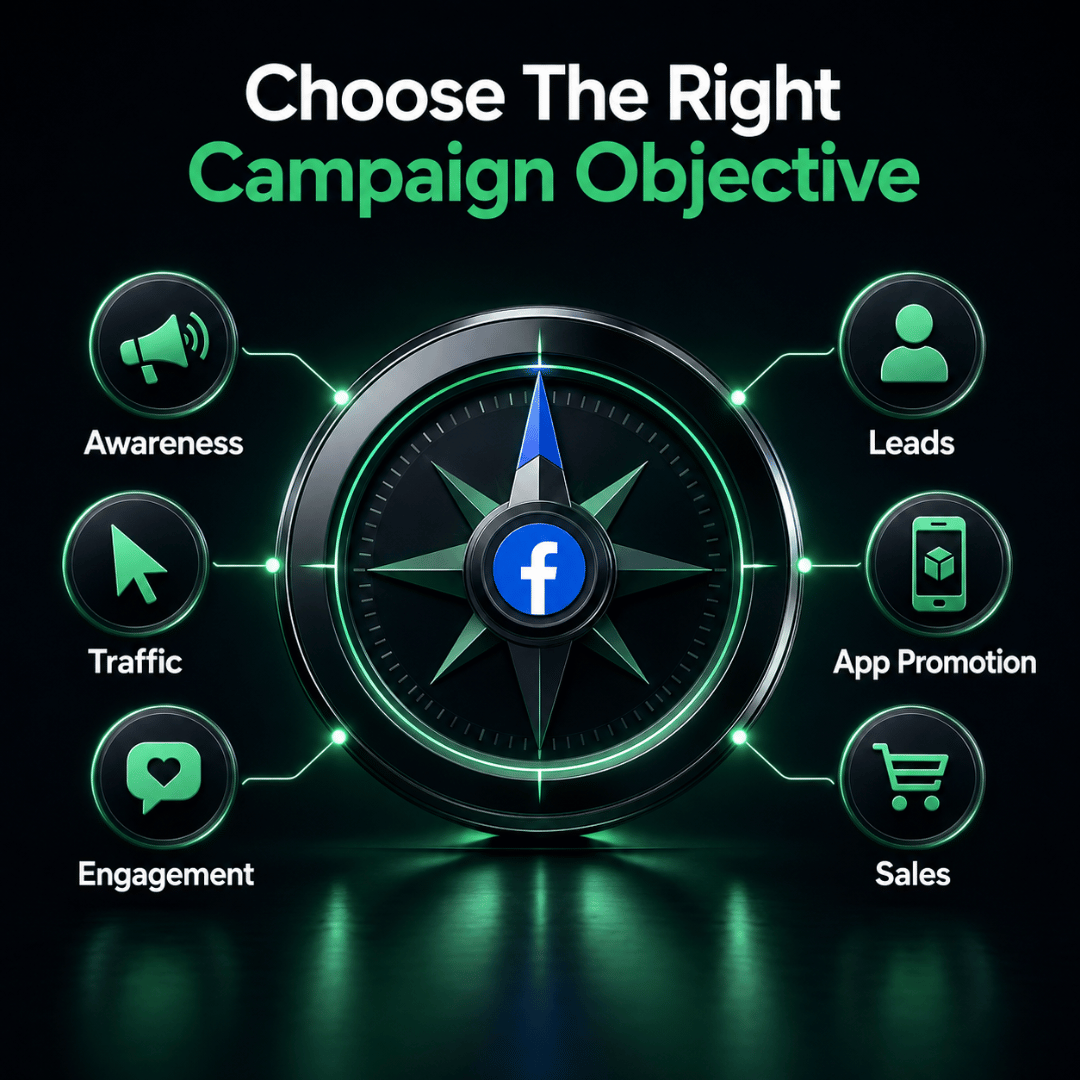
An important step in this Facebook Ads Manager Tutorial is choosing the objective that tells Meta which result to prioritise. You can also review Meta’s official guide to ad objectives to compare the available objectives with your business goal.
Choose it according to the intended business outcome.
| Objective | Suitable Goal |
| Awareness | Increase reach or brand awareness |
| Traffic | Send people to a website, app or supported destination |
| Engagement | Generate messages, video views or interactions |
| Leads | Collect enquiries through forms, calls, messages or website actions |
| App promotion | Encourage app installations or in-app actions |
| Sales | Generate purchases or other valuable conversions |
For example:
- Choose Traffic when the primary goal is to generate visits.
- Choose Leads when the business wants enquiries.
- Choose Sales when the desired result is a purchase.
- Choose Engagement for messages, video views or interactions.
- Choose Awareness when visibility is the priority.
Do not select Traffic simply because the advertisement links to a website. If the actual goal is an enquiry or purchase and suitable tracking is available, Leads or Sales may be more appropriate.
Prepare the Audience, Creative and Tracking
Prepare the main campaign inputs before entering Meta Ads Manager.
Audience
Define the relevant:
- Location
- Age range
- Language, when necessary
- Interests or behaviours
- Existing customer or website audiences
- Audience exclusions
Every targeting restriction should have a clear reason. Adding too many conditions may limit campaign delivery.
Offer and Destination
Decide where people should go after responding to the advertisement.
Possible destinations include:
- Website or landing page
- Instant Form
- Messenger
- Instagram Direct
- Mobile application
- Telephone call
The destination should continue the same offer shown in the advertisement.
Creative and Copy
Prepare:
- Primary text
- Headline
- Call to action
- Images or videos
- Destination URL
- Required disclaimers
- Tracking parameters
Make sure the creative is suitable for the selected placements. A Feed image may not display properly when cropped for Stories or Reels.
Measurement
Choose the action that represents success, such as:
- Landing-page view
- Message conversation
- Completed form
- Qualified enquiry
- Registration
- Purchase
Website campaigns may require the Meta Pixel, Conversions API or another suitable measurement setup. Campaigns using Instant Forms or messages may be able to measure their main results within Meta.
Test important tracking events before publishing.
INSERT THE VIDEO HERE
Facebook Ads Manager Tutorial: Create a Campaign Step by Step
Step 1: Open the Correct Ad Account
Open Meta Ads Manager and select the appropriate advertising account.
Confirm the:
- Ad-account name and ID
- Currency and time zone
- Payment method
- Facebook Page and Instagram access
- Dataset access, when required
- User permission level
Resolve any ownership or access problems before creating the campaign. Using the wrong account can cause billing, tracking and reporting issues.
Step 2: Select Create and Choose the Objective
Select Create and choose the objective that matches the intended result.
Ask:
What action should Meta prioritise when delivering this campaign?
The selected objective affects the conversion locations, performance goals and optimisation options available later.
Step 3: Name the Campaign
Use a name that another team member can understand.
A campaign name may include the:
- Brand
- Objective
- Offer
- Location
- Campaign period
Example:
Kawan Elite | Leads | Facebook Advertising Consultation | Malaysia | Aug 2026
Use related names at each level:
- Campaign: objective and initiative
- Ad set: audience, location or delivery variation
- Ad: creative format, message angle or version
Step 4: Configure the Campaign Settings
Campaign-level settings may include:
- Objective
- Special Ad Category
- Campaign budget
- Bid strategy or spending limits
- Available automated options
Declare a Special Ad Category when required, including for certain advertising involving housing, employment, financial services, politics or social issues.
You may also need to choose between a campaign budget and ad-set budgets.
Use a campaign budget when Meta can distribute spending across multiple ad sets. Use ad-set budgets when particular audiences, locations or tests need defined allocations.
The appropriate choice depends on the campaign structure and required level of control.
Step 5: Configure the Ad Set
The ad set controls most campaign-delivery decisions.
Conversion Location and Performance Goal
Select where the intended action should occur, such as:
- Website
- Application
- Messaging app
- Instant Form
- Telephone call
Then select the result Meta should attempt to maximise. Depending on the objective, this may include landing-page views, conversations, leads, purchases, reach or impressions.
For website campaigns, connect the correct dataset and conversion event when required.
Budget and Schedule
If using an ad-set budget, enter it here.
Depending on the available options, you may be able to choose:
- Daily or lifetime budget
- Continuous delivery
- Defined start and end dates
Allow sufficient time for campaign processing and review, particularly for time-sensitive promotions.
Audience
Configure the relevant location, age, language, targeting and exclusions.
The audience should be specific enough to match the offer without being unnecessarily restricted.
Placements
Meta may offer Advantage+ placements or manual placements.
Advantage+ placements allow Meta to deliver across eligible placements. Manual placements offer more control but can limit delivery opportunities.
When using manual placements, confirm that the creative format and aspect ratio work in every selected placement.
Step 6: Create the Advertisement
At the ad level, select the correct Facebook Page and Instagram account.
Then choose the available advertising setup, such as:
- Create a new advertisement
- Use an existing post
- Use another eligible creative setup
Available formats may include a single image, video or carousel.
Upload the creative and review its:
- Quality
- Aspect ratio
- Cropping
- Text readability
- Captions and audio
- Branding
- Required disclaimers
Complete the primary text, headline, description when used, and call-to-action button. These elements should communicate one consistent offer.
Next, add the website, form, app, telephone number or messaging destination.
For website destinations:
- Open the exact URL.
- Test it on desktop and mobile.
- Confirm that the offer matches the advertisement.
- Complete the intended form or purchase action.
- Verify the tracking parameters.
Where applicable, confirm that the relevant website or app event is being recorded correctly.
Review and Publish the Campaign
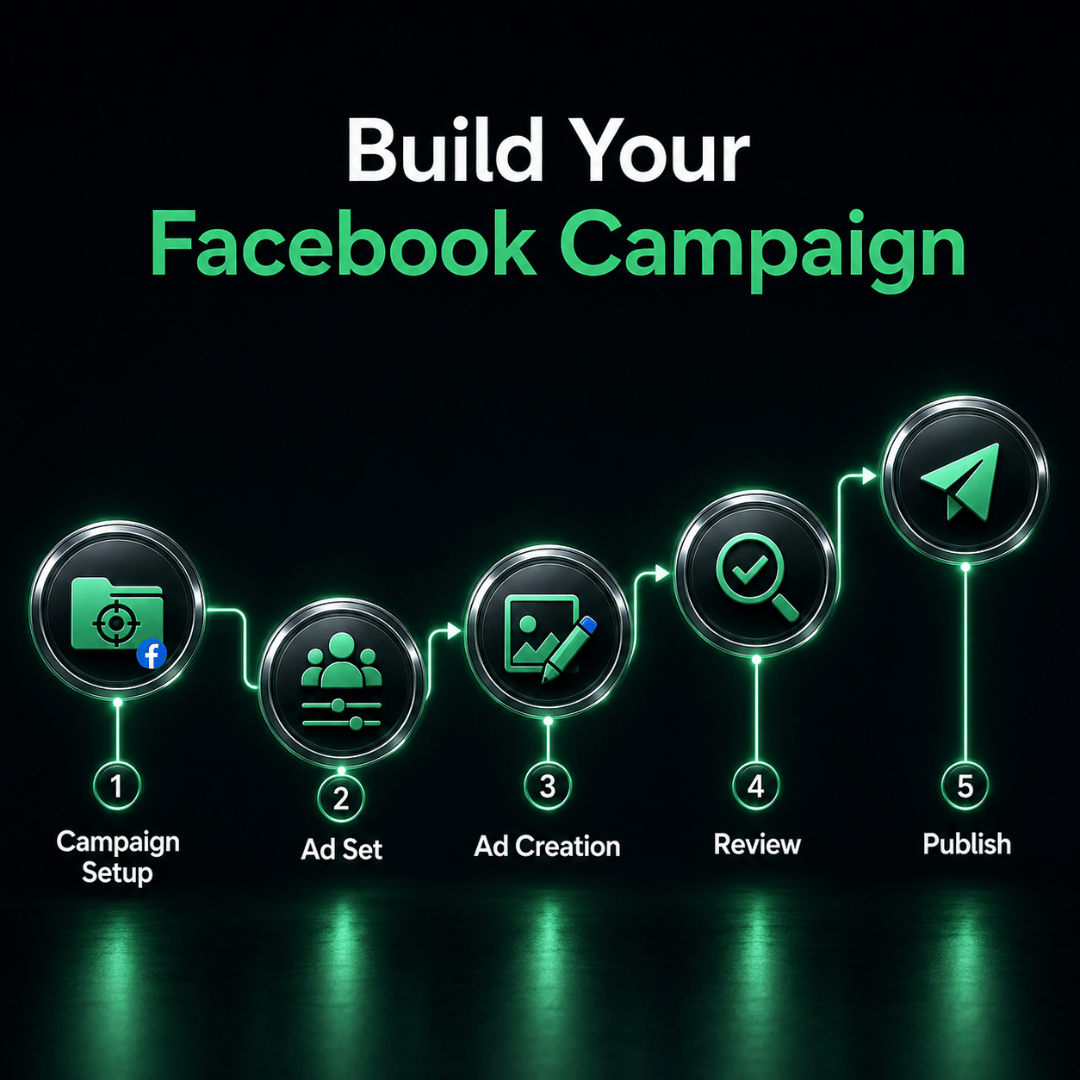
Before completing this Facebook Ads Manager Tutorial, review all three campaign levels carefully before selecting Publish.
Campaign
Confirm that:
- The objective matches the intended outcome.
- The campaign name is correct.
- The Special Ad Category is declared when required.
- The budget approach is intentional.
Ad Set
Confirm that:
- The conversion location is correct.
- The performance goal matches the desired result.
- The budget and schedule are accurate.
- The audience is relevant.
- The placements support the creative.
- The correct conversion event is connected.
Advertisement
Confirm that:
- The correct Page and Instagram account are selected.
- The copy, creative and destination show the same offer.
- The call to action matches the next step.
- The destination works.
- Tracking parameters are accurate.
- Important content is visible in the placement previews.
When these checks are complete, select Publish. The campaign will then be processed and reviewed before delivery begins.
What Should You Check After Publishing?
After completing this Facebook Ads Manager Tutorial, review the delivery status at the campaign, ad-set and ad levels.
A campaign may appear as active, scheduled, processing, in review, rejected, completed or not delivering.
If it is not delivering, check the:
- Scheduled start time
- Campaign, ad-set and ad switches
- Review status
- Payment method
- Budget and audience settings
- Conversion event and destination
- Account spending limit
- Errors or warnings in Ads Manager
Identify the likely cause before making repeated edits because certain changes may trigger another review or interrupt delivery.
Final Facebook Ads Manager Checklist
Use this Facebook Ads Manager Tutorial checklist to confirm the main settings before publishing:
- The correct ad account is selected.
- Required business assets and permissions are available.
- The objective matches the business goal.
- The budget and schedule are correct.
- The conversion location and performance goal are suitable.
- The audience and placements have been reviewed.
- The correct identity, creative and copy are included.
- The destination works on desktop and mobile.
- Tracking and URL parameters have been tested.
- Placement previews have been checked.
- The delivery status will be monitored.
Create Your Facebook Campaign
A clear campaign setup begins with the right objective, assets, audience and measurement plan.
Use this Facebook Ads Manager Tutorial to build your campaign systematically across the campaign, ad-set and ad levels. Before publishing, test the destination, check the tracking and review every selected placement.
Following this Facebook Ads Manager Tutorial cannot guarantee approval, delivery or results, but it can reduce preventable setup errors.
For help planning and managing your campaigns, explore Kawan Elite’s Facebook Advertising Services or contact the Kawan Elite team.