2 minute read

YouTube Channel Access: How to Provide Access in 6 Simple Steps

youtube-channel-access-how-to-provide-access-in-6-simple-steps

Learn how to provide YouTube Channel access safely using YouTube Studio permissions. Follow this step-by-step guide to invite managers or editors in minutes.

Nursyahirah Azli

Business Operations Executive

Published date: July 22, 2025

Last updated: May 22, 2026

Also know as Ira, she supports Kawan Elite’s business operations across finance, HR, administration, procurement and team coordination — helping keep internal workflows organised, compliant, and ready for smooth client delivery.

youtube-channel-access-how-to-provide-access-in-6-simple-steps

Article Topic

AI Summary: Key Takeaways

Read Smarter

What this article covers

  • Explains how to safely provide YouTube Channel access without sharing a Google account password.
  • Highlights why proper YouTube access management is important for teams, agencies, editors, and social media marketing workflows.
  • Covers the main benefits of using YouTube Studio permissions, including:
    • protecting the main Google account
    • assigning clear roles
    • managing content and analytics securely
    • removing access when needed
  • Provides a simple 6-step guide to grant YouTube Channel access through YouTube Studio.
  • Explains how to invite a user by entering their Google-linked email address.
  • Breaks down common access roles such as:
    • Manager
    • Editor
    • Viewer
    • Viewer Limited
  • Notes that YouTube Channel access invitations expire after 30 days if not accepted.
  • Identifies common access issues, such as missing invitations or being unable to see the Permissions menu.
  • Shares best practices for managing access, including using the lowest required permission level, reviewing access regularly, and avoiding password sharing.

Share this insight:

Providing YouTube Channel access is an important part of managing a social media marketing strategy, especially when working with teams or agencies. It allows you to safely collaborate with team members, agencies, or editors without sharing your Google account password. Using YouTube Studio permissions, you can control exactly what others can do on your channel.

This guide explains how to provide access to your YouTube channel step by step using the official permissions system.

Why YouTube Channel Access Matters

Granting proper access helps you:

  • Protect your main Google account
  • Assign clear roles and responsibilities
  • Manage content, comments, and analytics securely
  • Remove access instantly when no longer needed

If your channel uses a Brand Account, ensure you have migrated to channel permissions before proceeding.

Step-by-Step Guide to Provide YouTube Channel Access

Step 1: Sign in to YouTube Studio

Go to YouTube Studio and log in using the account that owns the channel.

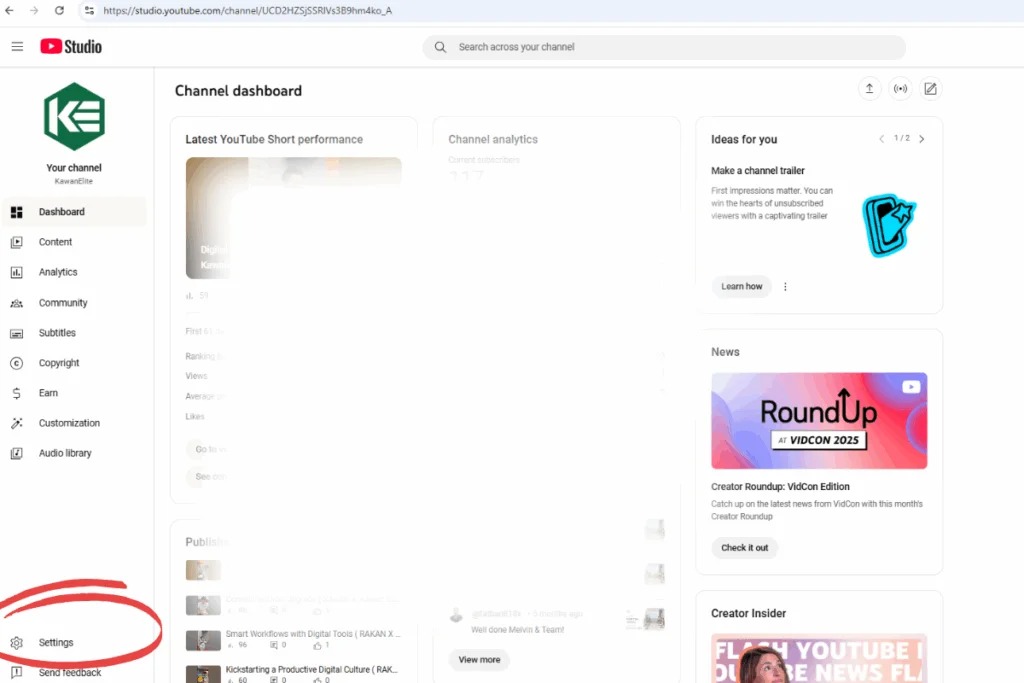
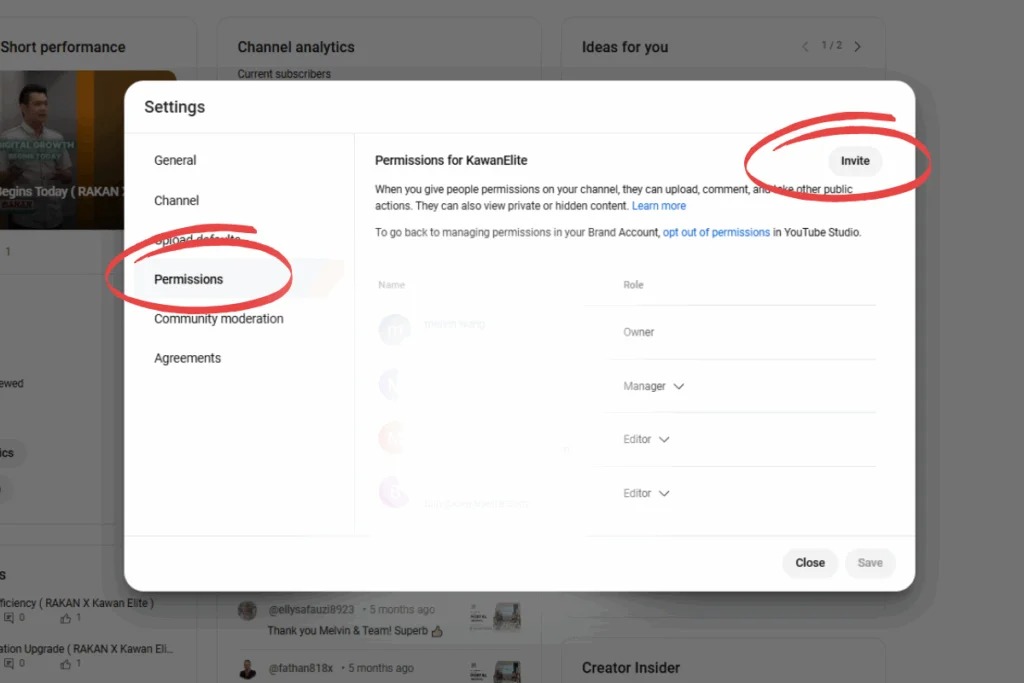
Step 2: Open Channel Settings

From the left-hand menu:

  • Click Settings
  • Navigate to Permissions

This is where all YouTube channel access settings are managed.
youtube-channel-access-permission

Step 3: Click “Invite”

Inside the Permissions section:

  • Click the Invite button (top right)

This allows you to add a new user to your YouTube channel.
youtube-permission-and-invitation

Step 4: Enter the User’s Email Address

In the Email field:

  • Enter the Google email address of the person you want to grant access to

Only Google-linked emails can receive YouTube Channel access.

Step 5: Select the Access Role

Choose the appropriate role based on responsibility:

  • Manager – Full access except deleting the channel
  • Editor – Upload and manage videos
  • Viewer – View analytics only
  • Viewer (Limited) – Basic read-only access

Choosing the correct role ensures secure YouTube channel access control.

Step 6: Click Done and Save

  • Click Done
  • Click Save to confirm

The invited user will receive an email invitation.

​​​​

Note: Invitations expire after 30 days if not accepted.

Common YouTube Channel Access Issues

Invitation Not Received

  • Ask the user to check spam
  • Confirm the email is linked to a Google account

Can’t See Permissions Menu

  • Ensure you are the Owner
  • Brand Account channels must migrate to permissions

Best Practices for Managing YouTube Channel Access

  • Grant the lowest access level needed
  • Review permissions every 3–6 months
  • Remove access immediately when roles change
  • Avoid sharing passwords under any circumstance

Share this insight:

In this article

9 sections

Jump to

Section

Get similar insights in your inbox

Real marketing technology trends and growth guides — from practitioners. No fluff.

KE Insight Subscription

500+ subscribers · Unsubscribe anytime

In this article

We've applied these principles for retailers, B2B companies, and government programmes across Malaysia.

Browse our success stories
Whatsapp us directly

Nursyahirah Azli

Business Operations Executive

Also know as Ira, she supports Kawan Elite’s business operations across finance, HR, administration, procurement and team coordination — helping keep internal workflows organised, compliant, and ready for smooth client delivery.

Kawan Elite

Malaysia's growth execution partner

Kawan Elite helps retail chains, B2B businesses, and government sectors build the connected systems behind measurable growth — strategy, systems, growth marketing and intelligence as one engine.

If this article resonates, you might be a good fit for what we do. Kawan Elite builds growth systems for businesses that want to scale — not just stay active.